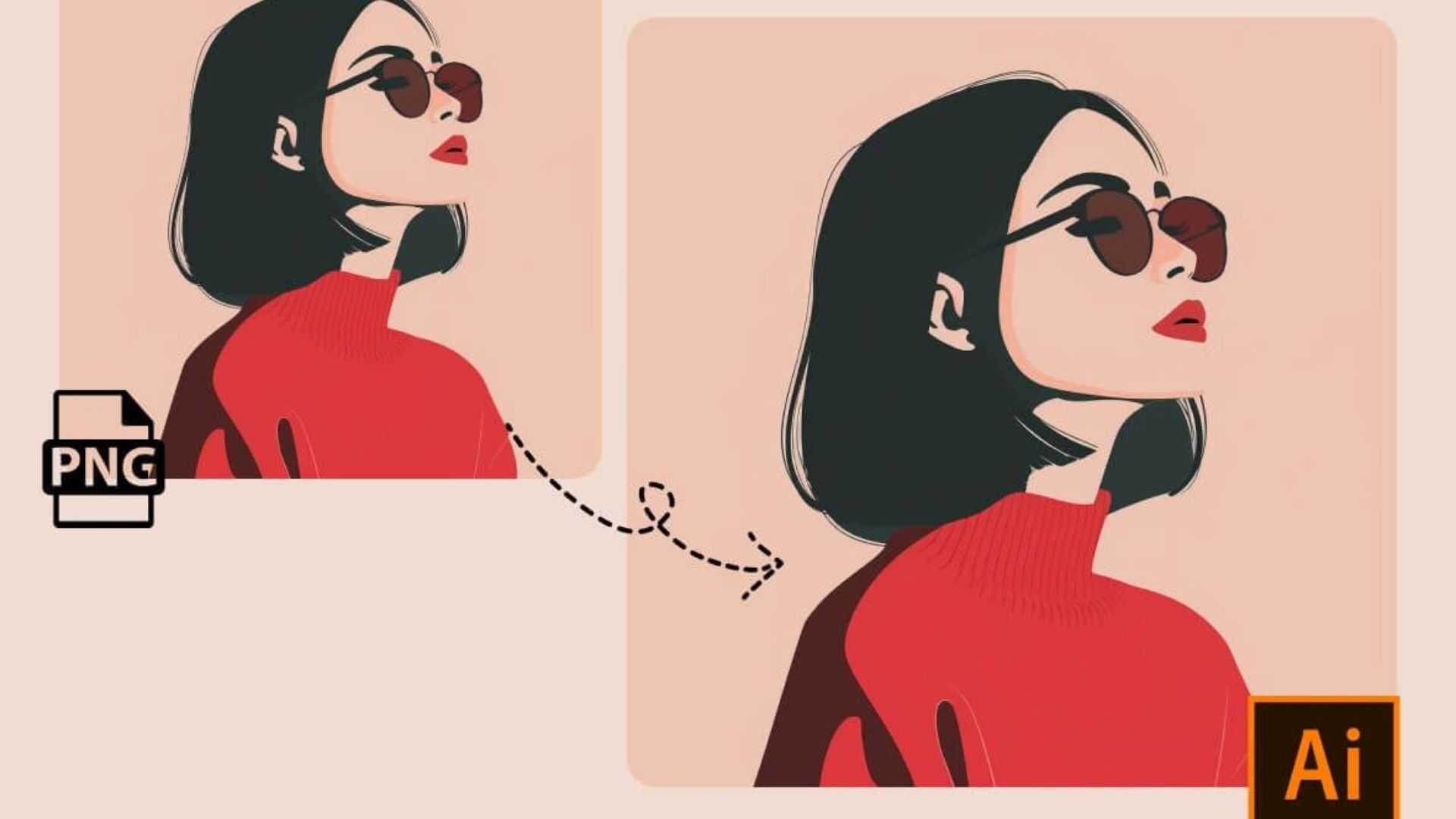
PNG to AI: How to Convert PNG Images to AI Format Online
QRImager - PNG is a popular image format known for its support for transparent backgrounds and lossless compression. It is widely used for logos, icons, illustrations, website graphics, and other digital images where preserving image details is important.
However, when working on graphic design projects, you may need to use your PNG images in Adobe Illustrator. This is where PNG to AI conversion becomes useful.
AI, short for Adobe Illustrator Artwork, is a file format commonly used for professional graphic design. It can contain vector shapes, paths, text, and embedded images, making it suitable for a wide range of creative projects.
Converting PNG to AI allows you to bring your existing images into an Illustrator-compatible workflow. Depending on the method you choose, you may also be able to turn your PNG image into editable vector artwork.
In this guide, we will explain how PNG to AI conversion works, how to convert PNG files online, and how to get better results for your design projects.
What Is PNG to AI Conversion?
PNG to AI conversion is the process of converting a PNG image into an Adobe Illustrator-compatible document.
PNG is a raster image format. This means that its graphics are made up of individual pixels. One of its main advantages is the ability to preserve transparency, which makes it useful for logos, icons, and images without backgrounds.
AI files are commonly used in vector design workflows. They can contain editable shapes, paths, text, and raster images.
However, converting a PNG file into an AI document does not automatically transform every pixel into a vector object.
Some conversion tools simply place the original PNG image inside an AI document. Other tools offer vector tracing features that can turn the image into editable paths.
If you want to create a scalable logo or illustration, it is important to choose a conversion method that supports raster-to-vector conversion.
Why Convert PNG to AI Format?
There are several reasons why converting PNG images to AI format can be helpful.
1. Make Images Ready for Graphic Design
AI files are commonly used in Adobe Illustrator workflows. Converting or importing a PNG image into an AI document makes it easier to include the image in a larger design project.
For example, you might want to use a PNG logo in a brochure, product label, business card, poster, or marketing banner.
2. Create Editable Vector Graphics
If your conversion tool supports vector tracing, you can transform certain PNG images into vector shapes.
This is particularly useful for simple logos, icons, symbols, and illustrations. Once the image has been converted into vector paths, you may be able to edit individual shapes, adjust colors, and refine outlines.
The quality of the result depends on the original image and the tracing settings.
3. Preserve Transparent Backgrounds
One of the main advantages of PNG is its support for transparency.
This is especially useful when working with logos, product graphics, and icons that need to appear on different backgrounds.
When converting PNG to AI, transparency may be preserved if the conversion method supports it. However, the way transparency is handled depends on the software and export settings.
Always check the converted file to make sure the background looks the way you expect.
4. Create Scalable Artwork
Vector graphics can be resized without the pixelation commonly associated with enlarging raster images.
This makes vector conversion useful for artwork that needs to appear at different sizes, such as a logo used on a website, business card, storefront sign, or billboard.
Keep in mind that this benefit applies to vectorized elements. A PNG image embedded in an AI document remains a raster image.
5. Simplify Your Design Workflow
Working with an AI document can make it easier to organize different design elements in one place.
You can combine images, text, vector shapes, and other artwork within the same project. This is useful when preparing creative materials that require several visual components.
How to Convert PNG to AI Online
An online PNG to AI converter can be a convenient option if you want to process an image through your browser. The exact steps depend on the service, but the general workflow is similar.
Step 1: Select Your PNG Image
Choose the PNG file you want to convert. If you need to preserve transparency, start with a PNG that already has a transparent background.
Step 2: Upload the File
Open your preferred online converter and upload the PNG image. Check the supported input formats and file size limits before continuing.
Step 3: Choose AI as the Output Format
Select AI if the converter supports it. If you need editable vector artwork, look for features such as image tracing or raster-to-vector conversion.
Step 4: Start the Conversion
Click the conversion button and wait for the process to finish. The time required may vary depending on the image size and the features offered by the tool.
Step 5: Download and Check the Result
Download the converted file and open it in compatible software. Review the image, transparency, colors, and editability before using it in your project.
Not all online converters support AI output. If AI is not available, you may need to use a graphics application that supports AI-compatible export.
How to Convert PNG to AI Using Adobe Illustrator
Adobe Illustrator provides a practical way to bring PNG images into an AI document. It also includes tools for turning raster images into vector artwork.
Step 1: Open Your PNG Image
Launch Adobe Illustrator and open your PNG file. Alternatively, create a new document and use the Place option to insert the image into your design.
If your PNG has a transparent background, check that the transparency appears correctly.
Step 2: Decide Whether to Keep the PNG or Vectorize It
If you only need to use the image in an Illustrator project, you can keep it as a raster image.
If you want editable vector shapes, select the image and use the Image Trace feature.
Image Trace analyzes the image and creates vector paths based on its shapes, colors, and other visual details.
Step 3: Adjust the Image Trace Settings
Choose a suitable tracing preset and adjust the settings to match your image.
For a simple black-and-white icon, a black-and-white preset may be appropriate. For a colorful illustration, you may need a color tracing option.
Review the preview carefully. Excessive detail can create unnecessary paths, while aggressive simplification may remove important parts of the design.
Step 4: Expand the Tracing Result
Once you are satisfied with the preview, use the Expand command to convert the tracing result into editable vector objects.
You can then adjust individual shapes, change colors, and refine the artwork.
If the original PNG contains a transparent background, inspect the traced result to ensure that unwanted background shapes have not been created.
Step 5: Save the File as AI
Choose Save As and select Adobe Illustrator (AI) as the file format.
Follow the available save options and save your document. Reopen the file to confirm that it displays correctly and that your design elements are available as expected.
Note: The available tools and menu names may vary depending on your Adobe Illustrator version.
PNG to AI vs. PNG to SVG
PNG to AI and PNG to SVG conversion can both be useful for design projects, but they serve different purposes.
|
Feature
|
PNG to AI
|
PNG to SVG
|
| --- | --- | --- |
|
Main purpose
|
Illustrator-based design workflows
|
Web graphics and vector artwork
|
|
Common use
|
Professional design projects
|
Websites, icons, and illustrations
|
|
Editable vector paths
|
Depends on conversion
|
Depends on conversion
|
|
Transparency
|
Depends on how the image is handled
|
Supported by the SVG format
|
|
Original pixels
|
May remain embedded
|
May remain embedded or be traced
|
AI is commonly used for Illustrator projects, while SVG is widely supported by web browsers and many graphics applications.
Neither format guarantees that a PNG image has been converted into editable vector paths. If scalability is important, make sure the conversion process includes actual vectorization.
Tips for Better PNG to AI Conversion
A few simple practices can help you get cleaner results when converting PNG images.
Use a High-Quality PNG
Start with a clear image that has sufficient resolution. Blurry edges and compression artifacts can make automatic tracing less accurate.
Although PNG uses lossless compression, the original image may still have low resolution or imperfect details.
Take Advantage of Transparent Backgrounds
If your PNG has a transparent background, it can be easier to isolate the main subject from its surroundings.
This is particularly helpful for logos, icons, and product graphics.
However, transparency does not automatically guarantee a clean vector result. Check the tracing preview for unwanted shapes.
Choose Simple Images for Vectorization
Images with clear outlines, solid colors, and simple shapes are often easier to trace than detailed photographs.
A logo with a few colors may produce a manageable vector file, while a complex image can generate many paths.
Adjust the Number of Colors
If the tracing tool offers color settings, experiment with reducing the number of colors.
A simpler color palette can make the resulting artwork easier to edit. However, reducing colors too much may remove important details.
Check the Final Artwork
Inspect the converted file at different zoom levels. Look for rough edges, unexpected shapes, missing details, or transparency issues.
For logos and brand graphics, compare the result with the original PNG before using it publicly.
Keep the Original PNG
Save a copy of your original image before starting the conversion. This allows you to repeat the process with different settings or return to the original if necessary.
Common PNG to AI Conversion Problems
Even when using a suitable conversion tool, you may encounter a few common issues.
The Converted Image Is Still Pixelated
This usually means the PNG has been placed inside an AI document without being converted into vector artwork.
To create scalable graphics, use Image Trace or another vectorization method.
The Transparent Background Becomes White
Some tools may not preserve transparency in the way you expect. Others may display transparent areas as white in the preview.
Check the exported file in compatible software and review the converter's transparency settings.
The Vector Edges Look Uneven
Low-quality source images or unsuitable tracing settings can produce rough outlines.
Try using a clearer PNG, adjusting the tracing options, or manually refining the vector paths.
The File Contains Too Many Objects
Detailed images can create a large number of vector paths, making the document difficult to edit.
Try simplifying the image, reducing the number of colors, or using a less detailed tracing setting.
The AI File Cannot Be Opened
The output may not be compatible with your application, or the file may not have been exported correctly.
Try opening it in a compatible graphics application. If necessary, ask the recipient whether SVG or PDF would be an acceptable alternative.
Is PNG to AI Conversion Free?
Some online converters offer free PNG conversion features, while others require a paid plan for particular output formats or advanced options.
Free services may have restrictions on file size, the number of conversions, or access to vector tracing features.
For a simple design task, a free tool may be sufficient. If you need professional editing capabilities, check the available features before choosing a service.
It is also worth reviewing the service's privacy policy, particularly if you are uploading business logos, client artwork, or other confidential images.
Frequently Asked Questions
1. How do I convert PNG to AI format?
You can use an online converter that supports AI output or open the PNG in Adobe Illustrator and save it as an AI document. If you need editable vector artwork, use a vector tracing feature before saving.
2. Can I convert PNG to AI without Adobe Illustrator?
Yes. Some online tools and alternative graphics applications support AI-compatible export. However, the available features and compatibility may vary.
3. Does converting PNG to AI preserve transparency?
Transparency may be preserved, depending on the conversion method and software settings. Always check the output file to confirm that transparent areas appear correctly.
4. Can I convert a PNG logo into a vector?
Yes. A PNG logo can often be converted into vector artwork using image tracing. Logos with clear outlines and a limited number of colors are generally easier to trace.
5. Will converting PNG to AI improve image quality?
Not automatically. Saving a PNG inside an AI document does not increase its resolution. Vectorizing the image can make the resulting vector elements scalable, but the quality depends on the tracing process.
6. What is the difference between PNG and AI?
PNG is a raster image format that supports transparency and is commonly used for digital graphics. AI is an Adobe Illustrator file format used for design projects and can contain vector paths, text, and embedded images.
7. Is PNG to AI suitable for logo design?
Yes. It can be useful when preparing a logo for an Illustrator-based workflow. If you need a logo that can be resized without losing sharpness, make sure the artwork is converted into actual vector paths.
Conclusion
Converting PNG to AI format is a practical way to prepare images for graphic design, branding, illustration, and other creative projects. It allows you to bring existing PNG graphics into an Illustrator-compatible document.
One of the main advantages of PNG is its support for transparent backgrounds, which makes it useful for logos, icons, and isolated graphics. However, preserving transparency and creating editable vector artwork are two separate parts of the conversion process.
For the best results, start with a clear PNG, choose the right conversion method, and review the output carefully. If you need scalable artwork, use a vector tracing feature rather than simply saving the PNG inside an AI document.
With the right approach, you can prepare your PNG images for a wide range of design projects while keeping your workflow organized and flexible.
