Image to AI Format: How to Convert Images into AI Files Online
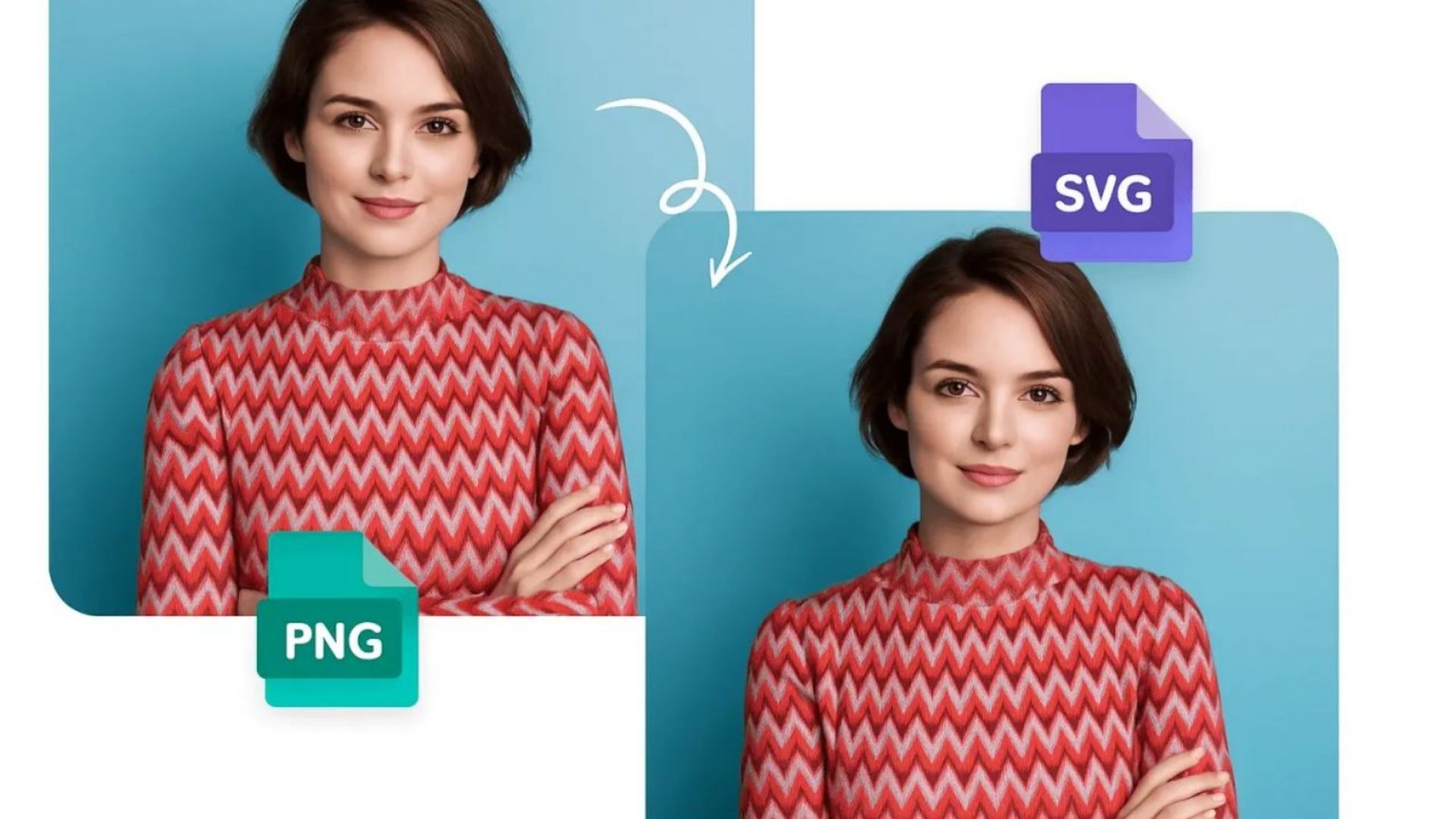
QRImager - Images come in many different formats, including JPG, PNG, WebP, and SVG. Each format has its own purpose, depending on how you want to use your images. However, if you work with graphic design, illustration, or professional printing, you may come across another format called AI.
An AI file is a type of image-related file commonly used in Adobe Illustrator. It is designed to support vector graphics, making it useful for creating logos, illustrations, icons, and other scalable designs.
If you have ever searched for an Image to AI Format tool, you may be wondering how the conversion process works, which image formats are supported, and whether you can convert an ordinary picture into an editable vector design.
In this guide, we will explore the basics of AI files, explain how image conversion works, and share a few practical tips to help you get better results.
What Is an AI File Format?
AI stands for Adobe Illustrator Artwork. It is a file format associated with Adobe Illustrator, a graphic design application used to create and edit vector artwork.
Unlike standard raster images, which are made up of pixels, vector graphics use mathematical paths, shapes, and curves to represent visual elements. This makes vector artwork suitable for designs that need to be resized without losing sharpness.
For example, a vector logo can be enlarged for a billboard or reduced for a business card while maintaining clean edges.
AI files are commonly used for:
-
Business logos and brand identities
-
Icons and illustrations
-
Marketing materials and advertisements
-
Packaging and product labels
-
Posters, banners, and printed designs
-
Professional graphic design projects
Although AI files are useful for design work, they are not as universally supported as JPG or PNG. You may need compatible software to open, edit, or export them.
What Does Image to AI Format Conversion Mean?
Image to AI Format conversion refers to the process of turning an existing image into an Adobe Illustrator-compatible file.
However, there is an important distinction between converting a file and converting its contents.
A standard image converter may change the file container or export an image into a format that an application can open. This does not necessarily turn the image into editable vector artwork.
For example, placing a JPG image inside an AI document does not automatically convert its pixels into vector shapes. The image may still behave like a regular raster picture.
To create editable vector artwork, the image usually needs to be traced or recreated using vector paths.
Understanding this difference can help you choose the right conversion method for your project.
How to Convert an Image to AI Format
There are several ways to prepare an image for use as an AI file. The right method depends on your original image, the software available to you, and whether you need editable vector elements.
1. Choose the Image You Want to Convert
Start by selecting the image you want to use. Common input formats include JPG, JPEG, PNG, and other image types supported by your chosen software.
For the best results, choose an image with good resolution, clear edges, and sufficient contrast.
Simple graphics, such as logos, symbols, and icons, are often easier to convert into vector artwork than photographs with complex details.
2. Upload Your Image to a Conversion Tool
If you are using an online image conversion tool, upload your image through the provided file selector.
Check the tool's supported input formats and maximum file size before uploading. Some tools focus on changing file formats, while others offer image tracing or vector conversion features.
If your goal is to create editable vector artwork, look for a tool that specifically supports raster-to-vector conversion.
3. Adjust the Conversion Settings
Depending on the tool, you may be able to adjust settings such as color detection, image tracing, background removal, or the level of detail.
For a simple black-and-white logo, fewer colors and cleaner paths may produce a more manageable result.
For detailed illustrations, you may need additional adjustments to preserve important shapes and colors.
Not every conversion tool provides these options, so the available settings will vary.
4. Convert the Image
Once your image and settings are ready, start the conversion process.
The processing time depends on the image size, complexity, and the tool being used. Some conversions finish almost instantly, while more detailed vector tracing may take longer.
After the process is complete, review the result before using it in your project.
5. Download and Check the AI File
If the tool supports AI output, download the converted file and open it in compatible software.
Check whether the artwork appears correctly, whether the colors have been preserved, and whether the elements are editable.
If the result contains unwanted shapes, rough edges, or excessive details, you may need to refine the artwork before using it professionally.
Image to AI Format vs. Raster-to-Vector Conversion
Although these terms are often used together, they describe different things.
|
Feature
|
Image File to AI
|
Raster to Vector
|
| --- | --- | --- |
|
Main purpose
|
Save or package artwork as an AI file
|
Turn pixels into vector paths
|
|
Editable paths
|
Not guaranteed
|
Usually created
|
|
Original image
|
May remain raster-based
|
Reconstructed as vector shapes
|
|
Best use
|
Opening or placing images in design projects
|
Creating scalable artwork
|
|
Common input
|
JPG, PNG
|
JPG, PNG, scanned images
|
The key takeaway is that an AI file does not automatically mean the image has become a vector graphic. Always check what the conversion tool actually produces.
Benefits of Using an Image to AI Format Tool
An Image to AI Format tool can be useful when you need to prepare graphics for a design workflow. Here are some practical benefits.
Better Design Compatibility
AI files are associated with Adobe Illustrator, making them useful for projects that involve Illustrator-based workflows.
Converting or importing your artwork into a compatible format can make it easier to organize design assets in one place.
More Flexible Editing
When an image is properly converted into vector paths, you can often adjust individual shapes, colors, and outlines.
This is particularly useful for logos, icons, and illustrations that need to be customized for different purposes.
Keep in mind that this flexibility depends on whether the conversion creates actual vector elements.
Scalable Graphics
Vector artwork can be resized without the pixelation commonly seen when enlarging raster images.
This makes vector conversion useful for designs that will appear across different sizes, from small labels to large printed materials.
Convenient Online Access
Online conversion tools can provide a convenient way to process images without installing additional desktop software.
Depending on the service, you may be able to upload an image, convert it, and download the result directly through your browser.
Before uploading sensitive or confidential artwork, review the tool's privacy policy and file-handling practices.
Tips for Getting Better Conversion Results
The quality of your original image plays an important role in the final result. A few simple adjustments can make the process easier.
Use a clear source image. Images with sharp edges and good contrast are generally easier to trace than blurry or heavily compressed pictures.
Start with simple graphics. Logos, icons, and illustrations with defined shapes are often more suitable for vector conversion than detailed photographs.
Remove unnecessary backgrounds. A plain or transparent background can help prevent unwanted shapes from appearing during tracing.
Avoid excessive detail. Too many tiny shapes and paths can make the resulting artwork difficult to edit. Simplifying the design may improve usability.
Review the final file. Open the output in compatible software and inspect the artwork at different sizes before using it in a project.
Keep the original image. Saving a copy of your source file allows you to repeat the conversion with different settings if needed.
Can You Convert JPG or PNG to AI Format Online?
Yes, some online tools support workflows that convert JPG or PNG images into AI-compatible files. However, the available output and editing capabilities depend on the specific service.
A tool might allow you to place a JPG or PNG image inside an AI document without converting the image itself into vector paths. Another tool may offer tracing features that create editable vector shapes.
If you need a genuinely scalable logo or illustration, look for a tool that supports vectorization and check whether it can export to AI format.
If you only need to use an existing picture in an Illustrator project, importing the original image may be sufficient.
Is AI Format the Same as SVG or EPS?
No. AI, SVG, and EPS are different file formats, although all three can be used in vector graphics workflows.
AI is associated with Adobe Illustrator and is commonly used for editable design projects. SVG is an XML-based vector format widely supported by web browsers and many design applications. EPS is an older graphics format that remains relevant in certain printing and publishing workflows.
The best format depends on how you plan to use your artwork.
For example, SVG is often convenient for website graphics, while AI may be appropriate when collaborating with a designer who uses Adobe Illustrator. EPS may be requested by particular print providers.
It is worth checking the requirements of your destination application or printing service before converting your files.
Common Problems When Converting Images to AI
Image conversion does not always produce perfect results. Here are a few issues you may encounter.
The Image Is Still Made of Pixels
If the image looks pixelated when enlarged, it may still be a raster image placed inside an AI document.
To create scalable artwork, use a vector tracing feature or manually recreate the image with vector shapes.
The Converted Image Looks Different
Colors, gradients, transparency, and fine details may change during conversion. Try using a higher-quality source image or adjusting the tracing settings.
For important brand assets, compare the converted result with the original before publishing or printing it.
The File Cannot Be Opened
Not every application supports AI files in the same way. Make sure you are using compatible software and that the file was exported correctly.
If necessary, ask the person or service receiving the file whether they can accept another format, such as SVG or PDF.
The Output Contains Too Many Paths
Complex images can produce a large number of vector shapes. This may make the file harder to edit and increase its complexity.
Try reducing the number of colors, simplifying the source image, or adjusting the tracing settings.
Frequently Asked Questions
1. What is the easiest way to convert an image to AI format?
The easiest method depends on your needs. An online converter may be convenient for basic file conversion, while vector tracing software is more suitable when you need editable vector artwork.
2. Can I convert a JPG to an editable AI file?
Yes, but creating an editable AI document and creating editable vector artwork are two different things. To edit individual shapes, the JPG generally needs to be traced or recreated as vector paths.
3. Can PNG images be converted to AI format?
Yes. Some tools support PNG input and AI-compatible output. Transparency and other image properties may be handled differently depending on the conversion method.
4. Will converting an image to AI improve its quality?
Not automatically. Saving a low-resolution image in an AI document does not increase its original detail. Quality improvements associated with scaling generally come from recreating the image as vector artwork.
5. Is an AI file suitable for printing?
AI files are commonly used in professional design and print workflows. However, you should confirm the printer's preferred file format, color settings, and other production requirements before submitting your artwork.
6. Do I need Adobe Illustrator to convert images to AI?
Not necessarily. Some online services and alternative applications may offer AI-compatible export options. However, Adobe Illustrator is the primary application associated with the format and is commonly used to edit AI documents.
7. Is online image conversion safe?
Online conversion can be convenient, but safety depends on the service. Review its privacy policy, upload requirements, and file-retention practices before submitting personal, business, or confidential images.
Conclusion
Converting an image to AI format can help you prepare graphics for design projects, illustration, and professional printing. However, it is important to understand the difference between saving an image inside an AI document and transforming that image into editable vector artwork.
For simple logos and icons, vector tracing can provide a practical way to create scalable graphics. For photographs or images that do not require individual shape editing, keeping the original raster format may be more appropriate.
Before choosing an Image to AI Format tool, check its supported formats, conversion features, and output quality. With the right approach, you can prepare your images for different creative projects while maintaining the flexibility your workflow requires.
