JPG to AI: How to Convert JPG Images to AI Format Online
QRImager - JPG is one of the most widely used image formats because it keeps file sizes relatively small while maintaining good image quality. It is commonly used for photographs, website images, social media graphics, and everyday digital pictures.
However, when working on graphic design projects, you may need your images in a different format. This is where JPG to AI conversion can be useful.
An AI file, short for Adobe Illustrator Artwork, is a format associated with Adobe Illustrator. It is commonly used for logos, illustrations, branding materials, and other creative projects that require flexible editing.
Converting JPG to AI can help you bring existing images into an Illustrator-based workflow. Depending on the conversion method, you may also be able to turn a JPG image into editable vector artwork.
In this guide, we will explain how JPG to AI conversion works, how to convert your images online, and what to consider when choosing a conversion tool.
What Is JPG to AI Conversion?
JPG to AI conversion is the process of converting a JPG image into an Adobe Illustrator-compatible file.
A JPG image is a raster graphic made up of pixels. It is suitable for photographs and detailed images, but enlarging it significantly can make the image appear blurry or pixelated.
AI files, on the other hand, are commonly used in graphic design projects. They can contain vector shapes, paths, text, and embedded raster images.
The important thing to understand is that converting a JPG file into an AI document does not automatically turn the image into a vector graphic.
Some tools simply place the original JPG inside an AI document. Others provide vector tracing features that transform parts of the image into editable paths.
If your goal is to create a scalable logo or illustration, choosing a conversion method that supports vectorization is especially important.
Why Convert JPG to AI Format?
There are several reasons why someone might want to convert a JPG image into an AI file.
1. Prepare Images for Graphic Design
AI files are commonly used in Adobe Illustrator workflows. Converting or importing a JPG into an AI document can make it easier to include the image in a larger design project.
For example, you might want to use an existing picture as part of a poster, brochure, product label, or promotional graphic.
2. Create Editable Vector Artwork
If you use a vector tracing tool, you can turn certain JPG images into vector shapes.
This is particularly useful for simple logos, symbols, icons, and illustrations. Once converted into vector paths, individual elements may be edited, recolored, or reshaped.
The result will depend on the quality and complexity of the original image.
3. Create Scalable Graphics
Vector artwork can be resized without the pixelation associated with enlarging raster images.
This makes vector conversion useful for designs that need to appear in different sizes, such as a company logo used on a business card, website, banner, or billboard.
However, this benefit applies to the parts of the image that have actually been converted into vector artwork. A JPG embedded in an AI document remains a raster image.
4. Support Professional Design Workflows
Designers may receive images in JPG format but need to incorporate them into projects prepared in Adobe Illustrator.
Having an AI-compatible document can make it easier to organize artwork, combine design elements, and prepare files for further editing.
Always check the requirements of the designer, client, or printing service before choosing an output format.
How to Convert JPG to AI Online
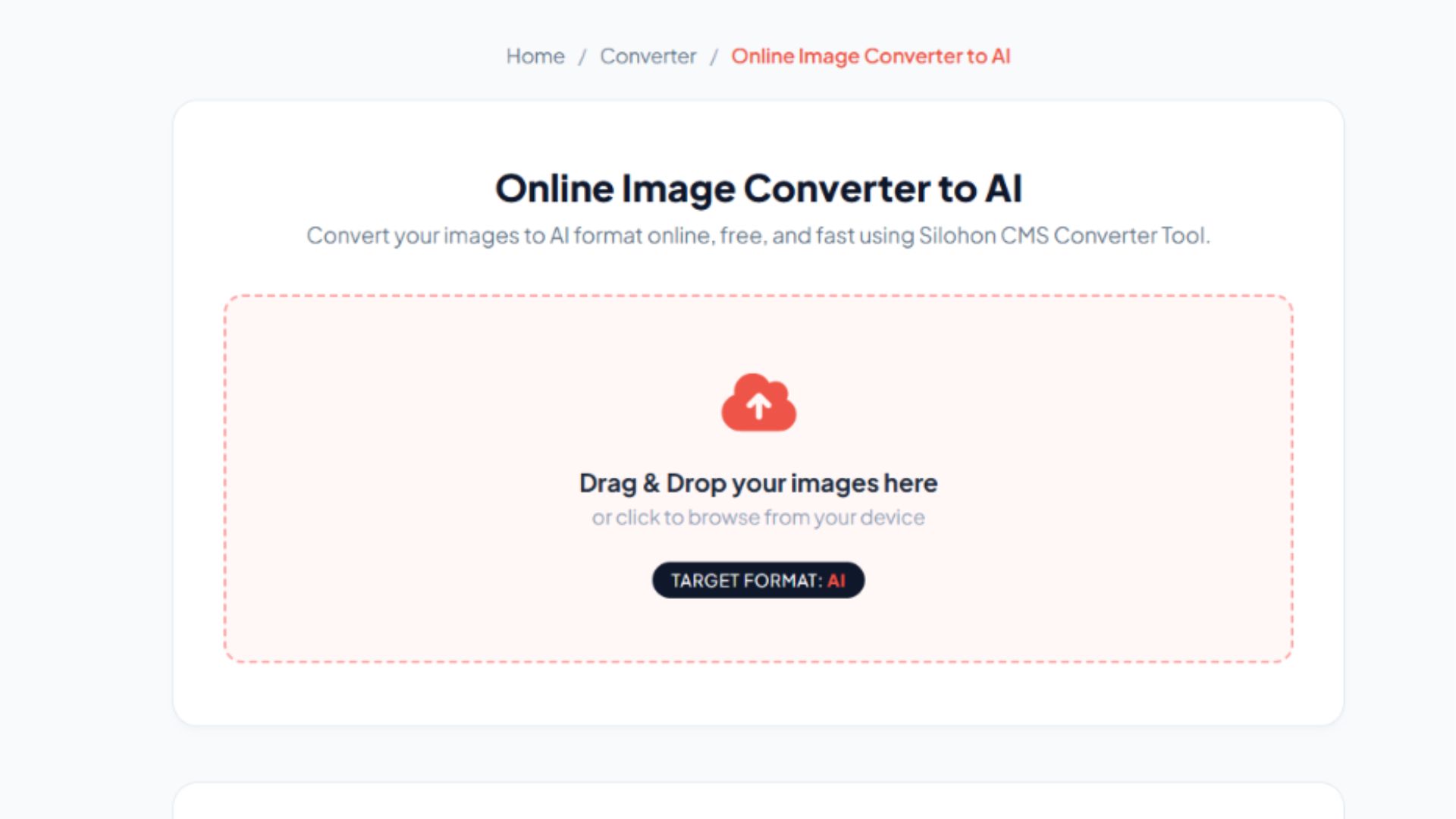
Using an online JPG to AI converter can be a convenient option if you do not want to install additional software. The exact steps depend on the tool you choose, but the general process is straightforward.
Step 1: Select Your JPG Image
Choose the JPG file you want to convert from your computer. Use an image with good resolution and clear details, especially if you plan to create vector artwork.
Step 2: Upload the Image
Open your preferred online converter and upload the selected JPG file. Check the maximum file size and supported image formats before proceeding.
Step 3: Choose the Conversion Settings
Select AI as the output format if it is available. If you need editable vector artwork, look for additional options such as image tracing or raster-to-vector conversion.
Step 4: Start the Conversion
Click the conversion button and wait for the tool to process your image. Processing time may vary depending on the file size and the conversion method.
Step 5: Download and Review the AI File
Download the converted file and open it in compatible software. Check the image quality, colors, and editability before using it in your project.
Not every online converter supports genuine AI export. If the tool does not offer AI as an output format, you may need to use a vector graphics application or another conversion method.
JPG to AI Using Adobe Illustrator
Adobe Illustrator provides another way to work with JPG images and save them as AI documents.
This method is useful when you want more control over the final design.
Step 1: Open the JPG File
Launch Adobe Illustrator and open your JPG image. You can also create a new document and place the image inside it.
Step 2: Decide Whether to Keep or Trace the Image
If you only need the JPG inside an Illustrator document, you can leave it as a raster image.
If you want to create vector artwork, select the image and explore Illustrator's Image Trace feature. This feature can analyze the image and generate vector paths based on its shapes and colors.
Step 3: Adjust the Image Trace Settings
Experiment with the available presets and settings to achieve the appearance you want.
For example, a simple black-and-white logo may work well with a black-and-white tracing preset. A colorful illustration may require a different approach.
Review the result carefully, as tracing can introduce unwanted shapes or remove fine details.
Step 4: Expand and Edit the Artwork
When you are satisfied with the tracing result, use the Expand command to turn the tracing into editable vector objects.
You can then adjust individual shapes, modify colors, and refine the artwork as needed.
Step 5: Save as an AI File
Choose the Save As option and select Adobe Illustrator (AI) as the file format.
Follow the available save options, then reopen the file to make sure the document is working as expected.
Note: Menu names and available features may vary depending on your Illustrator version.
JPG to AI vs. JPG to SVG
JPG to AI and JPG to SVG conversion are related, but they serve somewhat different purposes.
|
Feature
|
JPG to AI
|
JPG to SVG
|
| --- | --- | --- |
|
Main use
|
Illustrator design workflows
|
Web graphics and vector artwork
|
|
Common application
|
Adobe Illustrator
|
Web browsers and vector editors
|
|
Editable paths
|
Depends on conversion
|
Depends on conversion
|
|
Scalable artwork
|
Yes, if vectorized
|
Yes, if vectorized
|
|
Original pixels
|
May remain embedded
|
May remain embedded or be traced
|
Both formats can support vector graphics, but neither automatically converts every pixel into an editable path.
If you are creating artwork for an Illustrator project, AI may be a suitable choice. If you need a vector graphic for a website, SVG may be more convenient.
Tips for Better JPG to AI Conversion
Getting a clean result often starts with choosing the right source image. Here are a few practical tips to keep in mind.
Use a High-Resolution JPG
A clear source image gives tracing tools more visual information to work with. Avoid images that are heavily compressed, blurry, or extremely small.
Keep in mind that a higher resolution alone does not guarantee a better vector result.
Choose Simple Images for Vectorization
Logos, icons, and illustrations with clear outlines are often easier to trace than photographs.
Photographs contain complex details, shadows, and color variations that can produce thousands of vector shapes. In many cases, keeping a photograph as a raster image is more practical.
Improve Contrast Before Converting
If your image has a busy background or unclear edges, consider editing it before conversion.
Increasing contrast or removing an unnecessary background may help a tracing tool identify the important shapes.
Review Colors and Edges
Automatic tracing may create rough outlines, unexpected colors, or small unwanted shapes.
Zoom in on the result and clean up any imperfections before using the artwork for professional purposes.
Keep a Copy of the Original JPG
Always save the original image before converting it. This gives you a backup and allows you to try different settings without losing the source file.
Common JPG to AI Conversion Problems
Even with a suitable tool, you may encounter a few common issues.
The AI File Looks Pixelated
This usually happens when the original JPG is placed inside an AI document without being vectorized.
To create scalable artwork, use a tracing feature or manually recreate the image using vector shapes.
The Converted Image Has Rough Edges
Low-resolution images and complex backgrounds can make automatic tracing less accurate.
Try using a clearer source image, adjusting the tracing settings, or manually refining the paths.
The File Is Too Complex to Edit
Photographs and detailed images can produce a large number of vector objects when traced.
Reducing the number of colors or simplifying the source image may create a more manageable result.
The AI File Will Not Open
Make sure the file was exported correctly and that your software supports the generated AI format.
If you are sending the file to another person, ask whether they can accept an alternative such as SVG or PDF.
Is JPG to AI Conversion Free?
Some online tools provide free JPG conversion features, while others offer additional capabilities through paid plans.
Free tools may include restrictions on file size, daily conversions, output formats, or advanced editing features.
If you only need to prepare a small image for a personal project, a free option may be sufficient. For professional work, check whether the tool supports the output format and editing capabilities you actually need.
You should also review the service's privacy practices before uploading confidential images.
Frequently Asked Questions
1. How do I convert JPG to AI format?
You can use an online converter that supports AI output or open the JPG in Adobe Illustrator and save it as an AI document. If you need editable vector shapes, use a vector tracing feature before saving.
2. Can I convert JPG to AI without Adobe Illustrator?
Yes, some online tools and alternative graphics applications support AI-compatible export. However, compatibility and editing features vary between tools.
3. Does converting JPG to AI improve image quality?
Not automatically. Saving a JPG in an AI document does not increase its resolution. Converting the image into vector paths can make the vector elements scalable, but the result depends on the quality of the tracing process.
4. Can I convert a JPG logo into a vector?
Yes. A JPG logo can often be traced into vector shapes, especially when it has a simple design, clear outlines, and limited colors. You may need to refine the paths to achieve a clean result.
5. Can I edit a JPG after converting it to AI?
You can edit the Illustrator document, but the type of editing depends on how the JPG was converted. An embedded JPG remains a raster image, while traced vector artwork can allow you to edit individual shapes and paths.
6. Is JPG to AI conversion suitable for printing?
It can be suitable for print workflows, particularly when the artwork has been properly prepared. Confirm the printer's requirements for file format, image resolution, color mode, and any other production settings.
7. What is the difference between JPG and AI?
JPG is a raster image format commonly used for photographs and digital images. AI is an Adobe Illustrator file format used in graphic design workflows and can contain vector artwork, text, and embedded images.
Conclusion
Converting JPG to AI format can be useful when preparing images for graphic design, branding, illustration, and printing projects. The process allows you to bring existing JPG images into an Illustrator-compatible workflow.
However, it is important to understand that saving a JPG as an AI file does not automatically make it a vector graphic. If you need scalable, editable artwork, look for a conversion method that includes vector tracing.
For the best results, start with a clear image, choose suitable conversion settings, and review the final file before using it. Whether you are working on a logo, an illustration, or a larger design project, understanding the difference between raster images and vector artwork will help you choose the right approach.
